Search This Blog

Showing posts with label control. Show all posts

Friday, June 1, 2018

How to access and manipulate a custom ASP.NET user control from a Controller in a Module project


We have updated our How to: Show a Custom Data-Bound Control in an XAF View (ASP.NET) tutorial with more information on how to pass external data to custom Web user controls

Previously, our customers had the following difficulties with this task:

- In which project to create web user controls. By default, ASP.NET suggests doing this in the YourSolution.Web project. Adding an *.ASCX control into the YourSolutionName.Module.Web project led to errors.

- How to deal with circular references when attempting to reference the YourSolution.Web project from a Controller defined in the YourSolutionName.Module.Web project.
- How to pass an IObjectSpace, XafApplication or current View object to a custom user control.


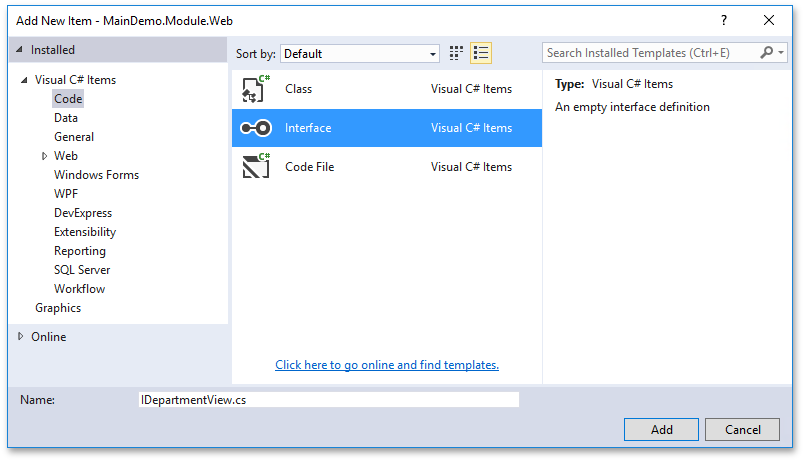
A common way to resolve such a dependency (unrelated to XAF itself) is to define an interface within your class library (a XAF module project) and implement it by using your custom user control.


Tuesday, March 7, 2017

How to change an Application Model option globally or for multiple nodes

I have recently updated one of the articles on the subject in our support knowledge base and wanted to test-drive this content with you: https://www.devexpress.com/kb=T271022


Since the Application Model basically represents a skeleton of the application UI, based on which visual controls for supported platforms are created at runtime, updates to various options in the source UI metadata (both at design time and runtime) can be a good and often platform-agnostic alternative to customizing underlying controls directly in Controllers or other UI entities (examples: one, two, three). The most difficult thing is to perform this update at the right moment or using the right event in the View life cycle!
Even though this may sound like a quite an advanced topic, this is one of the core concepts for our framework, which I recommend you get familiar with.


Your feedback is welcome, as always!

We also hope to use this KB as a base for future updates of the online documentation at  Concepts > Application Model  for easier discoverability, so your early feedback on the main methods I described is welcome. In particular, I would greatly appreciate your comments on whether you experienced the scenarios needed runtime Application Model updates and exactly which techniques you used (e.g., #2.1, 2.2 or all ).


How to customize the New Object Action with a single item to display a simple button instead of a dropdown in WinForms


UPDATE:
See the latest post on this matter at Usability change for SingleChoiceAction with a single sub-item - YOUR FEEDBACK IS NEEDED!!!
-----------------------------------------------------------------------
I would like to promote an updated/simplified v16.2 solution for this task after introduction of the ActionBase > CustomizeControl event. To remind you the context, let me quote myself from the https://www.devexpress.com/kb=Q497985 thread:


"XAF allows defining whether a SingleChoiceAction click should show a dropdown or execute an action item immediately using the ShowItemsOnClick and DefaultItemMode  properties. You can easily change these properties based on the number of the New action items. However, a triangle glyph is always shown by default. The SingleChoiceAction does not currently provide built-in means for replacing a dropdown with a simple button either. Currently, to improve user experience with such configurations, you can customize the underlying bar item in the YourSolutionName.Module.Win project.


You can use the following controller to hide a drop-down list from the NewObjectAction in case it contains only one element:


using DevExpress.ExpressApp;
using DevExpress.ExpressApp.Actions;
using DevExpress.ExpressApp.Win.SystemModule;
using DevExpress.XtraBars;
...
namespace YourSolutionName.Module.Win.Controllers {
    public class CustomizeNewActionController : WindowController {
        BarButtonItem newActionBarButtonItem;
        protected override void OnFrameAssigned() {
            base.OnFrameAssigned();
            WinNewObjectViewController newObjectViewController = Frame.GetController<WinNewObjectViewController>();
            SingleChoiceAction newObjectAction = newObjectViewController.NewObjectAction;
            newObjectAction.CustomizeControl += NewObjectAction_CustomizeControl;
            newObjectAction.ItemsChanged += NewObjectAction_ItemsChanged;
        }
        private void NewObjectAction_ItemsChanged(object sender, ItemsChangedEventArgs e) {
            if(newActionBarButtonItem != null) {
                SingleChoiceAction newObjectAction = (SingleChoiceAction)sender;
                int choicesCount = newObjectAction.Items.Count;
                if(choicesCount == 1) {
                    newActionBarButtonItem.ButtonStyle = BarButtonStyle.Default;
                }
            }
        }
        private void NewObjectAction_CustomizeControl(object sender, CustomizeControlEventArgs e) {
            newActionBarButtonItem = e.Control as BarButtonItem;
        }
    }
}


Here are screenshots showing the results in the application UI before and after this customization.


Before


After


Also, you can use the same approach with the CloneObjectAction (it is a part of the CloneObjectViewController). Refer to the following documentation articles to learn more about this solution:
    Concepts > Extend Functionality > Built-in Controllers and Actions 
    Concepts > Extend Functionality > Customize Controllers and Actions 
    Task-Based Help > How to: Customize Action Controls
    DevExpress.XtraBars > BarButtonItem > ButtonStyle 
    DevExpress.XtraBars > BarButtonItem > ActAsDropDown 


For older versions
Check out the How to display a dropdown without a triangle glyph for a SingleChoiceAction ticket for code examples."

Thursday, December 29, 2016

A custom XAF PropertyEditor example based on the WinForms TimeSpanEdit component

As you know, XAF is very flexible and provides many ways of integrating custom controls for various scenarios; e.g., where something is not covered by the default controls pack: Concepts > UI Construction > Using a Custom Control that is not Integrated by Default

As far as our framework development flow is concerned, it is absolutely natural to perform this sort of customizations, and this extensibility was baked in from the very beginning for XAF users. For instance, there is a built-in WinForms TimeSpanPropertyEditor class for representing and editing System.TimeSpan type properties in the standard delivery:

        public TimeSpan TimeSpanProperty {
            get { return GetPropertyValue<TimeSpan>("TimeSpanProperty"); }
            set { SetPropertyValue<TimeSpan>("TimeSpanProperty", value); }
        }

Technically, our TimeSpanPropertyEditor just wraps a TextEdit descendant from the XtraEditors Library and provides a custom mask for it. One may want to use another visual control for the same task (e.g., the TimeSpanEdit control from the same XtraEdititors library) and that is quite easy to implement in XAF. You can implement a custom PropertyEditor as per  Concepts > UI Construction > View Items > Implement Custom Property Editors


Monday, December 19, 2016

How to view and edit only time values without the date part

I would like to promote a new KB article on integrating the WinForms TimeEdit and ASP.NET WebForms ASPxTimeEdit components in XAF:


My team and I would greatly appreciate it if you leave comments on whether you experienced similar tasks in the past and how you were solving them, or if you remember any difficulties with these solutions/maintenance.


Wednesday, March 4, 2015

JFYI for creators of custom PropertyEditors for complex ListView in-place editing scenarios in WinForms

This is just a quick note for advanced XAFers creating complex PropertyEditors in WinForms.

If your custom PropertyEditor is intended for complex ListView in-place editing scenarios (e.g., drop-down editor data source filtering), then its underlying control should support the DevExpress.ExpressApp.Win.Core.IGridInplaceEdit interface.


The most common scenarios include data source filtering (e.g., the functionality of the DataSourceCriteria, DataSourceProperty and similar attributes) and obtaining information of the currently edited record in ListView for internal purposes (e.g., obtaining object type information). Standard XAF PropertyEditors whose underlying controls implement the IGridInplaceEdit interface include LookupPropertyEditor, ObjectPropertyEditor, PopupCriteriaPropertyEditor and ExpressionPropertyEditor. You can refer to their source code for more details. In addition, you can consider checking the How to work with referenced properties via a simple drop down list instead of the standard LookupPropertyEditor (Example) example source as well.

Thursday, February 26, 2015

Check out an example demonstrating a possible way of integrating Snap reports in an XAF WinForms application

The example integration shows how to store DevExpress Snap reports layout in business objects and show a list of these objects, as this is done in the built-in Reports module. The main tool for working with these reports is a custom Snap designer form. Underlying business objects can be configured using custom buttons from this form. It is also possible to show a read-only preview form using corresponding actions.

You can download the actual test project and research the example implementation from here: 

Wednesday, January 21, 2015

Simplifying integration of custom controls bound to data from XAF application database - YOUR FEEDBACK IS NEEDED

Scenario


We are researching options to make it easier for our users to achieve the subject in the next version. One of the popular scenarios we were aware of from our users was integration of custom controls, often created in Visual Studio using the standard WinForms or ASP.NET WebForms approaches, and primarily designed for presenting data from the XAF application database in some very custom manner so that built-in XAF Property Editors  or List Editors were not good for this. For instance, you might want to show a list of records in a fancy grid with cards, image gallery or other controls or modes not integrated by default.


Current solutions and problems

XAF is very extensible framework and offers many ways of integrating custom or third party controls. We noticed that while doing so, feeding these custom controls with data from the application database was often a challenge for our users. This binding is done automatically for built-in forms and data editors, but requires writing some code that will read data via the IObjectSpace.GetObjects<T> method (to respect data security filters) and also listen to the IObjectSpace.Reloaded and other events to handle data updates. Finally, designing a data bound user control in Visual Studio often implies a direct connection to the database or using specialized data sources (e.g., to generate a list of grid columns or pivot fields), which do this for you. The latter forces you to think about obtaining an application connection string at design time, while this dynamic part is changed later in the most cases. Add to this different approaches for Entity Framework and XPO and you will get the whole picture.

New solutions (not yet built-in!)

Briefly, we decided to simplify this scenario. Here are two videos that shows one possible option:

ASP.NET:  http://www.screencast.com/t/OHhcHD9vy

WinForms: http://www.screencast.com/t/8M8K4eskkYO9

How it works?


In short, the proposed flow is as follows:

Wednesday, June 5, 2013

Discussing UI customization in XAF by example of customizing controls associated with Actions on the Web

One of the ways to access and customize controls associated with Actions on the Web is to inherit from the ProcessActionContainerHolderController class. It represents a base class from which Controllers (there is a number of standard descendants) customizing Action Container controls are derived.

Example
For instance, imagine that we want to enable scrolling of large menu items in our Web application and want to use the following feature of our DevExpress ASP.NET menu control: ASP.NET Menu Scrolling - today I had a real customer wanting to perform this customization.

So, you can consider using the following example code in version 12.2+:

using DevExpress.ExpressApp;
using DevExpress.ExpressApp.Actions;
using DevExpress.ExpressApp.Web.SystemModule;
using DevExpress.ExpressApp.Web.Templates.ActionContainers;
using DevExpress.ExpressApp.Web.Templates.ActionContainers.Menu;
using DevExpress.Web.ASPxMenu;

namespace MainDemo.Module.Web.Controllers {
    // This is a demo controller that builds an Action with a lot of items in the UI.
    public class Class1 : ViewController {
        public Class1() {
            SingleChoiceAction dropDownMenuAction = new SingleChoiceAction(this, "Test", DevExpress.Persistent.Base.PredefinedCategory.View);
            dropDownMenuAction.ItemType = SingleChoiceActionItemType.ItemIsOperation;
            for (int i = 0; i < 100; i++) {
                dropDownMenuAction.Items.Add(new ChoiceActionItem("Test" + i.ToString(), i));
            }
        }
    }
    // This is our descendant of the standard controller to access and customize controls of a required Action.
    public class EnableScrollingMenuItemsController : ProcessActionContainerHolderController {
        protected override void OnActionContainerHolderActionItemCreated(WebActionBaseItem item) {
            base.OnActionContainerHolderActionItemCreated(item);
            MenuActionItemBase menuItem = item as MenuActionItemBase;
            if (menuItem != null && menuItem.MenuItem.Menu is ASPxMenu && menuItem.Action.Id == "Test") {
                // Accessing the ASPxMenu control and customizing it according to the DevExpress ASP.NET documentation.
                ((ASPxMenu)menuItem.MenuItem.Menu).EnableSubMenuScrolling = true;
            }
        }
    }
}

That's it and we can now run our test app (I used our MainDemo) to see the result:


What we might have learned here?

  • Controllers can be used to implement custom features in XAF, e.g. to customize a certain UI element, to change your application's flow and implement custom end-user interaction;
  • XAF provides a number of built-in Controllers and Actions that are used when generating the default UI. For instance, CRUD, validation, navigation and search features are powered by Controllers;
  • It is possible to create custom Controllers derived from built-in ones to customize the default UI generation and behavior.
  • The default XAF UI is built at runtime and consists of regular controls using the standard development techniques. The only specificity of XAF is that it focuses on reusing code where possible - think of it like about building your application from custom user controls to avoid duplicate work.
  • In XAF, you can access a required UI element or control and customize it using the approaches you are accustomed to in the traditional development with WinForms or ASP.NET frameworks. See one, two, three topics in our docs for more customization examples.

Wednesday, May 29, 2013

Discussing custom forms and controls (again)

I recently updated the E911 example to 13.1 (it was very smooth, btw - only one change from IComplexPropertyEditor to IComplexViewItem) and refactored it a bit (improved some code, added more code comments and fully rewrote the description).

I think that you may be interested in checking this updated example (I reposted its description below), because it may help you better understand ideas behind XAF as well as how it works and is built internally.

In addition, I recommend you check out the following help articles in the XAF documentation:

eXpressApp Framework > Concepts > UI Construction
eXpressApp Framework > Concepts > UI Construction > UI Element Overview
because they should give you a better understanding of reusable XAF building blocks and see how to customize or replace them.

==========================
This example implements the following scenarios when an end-user clicks on a custom item in the navigation control:
- a custom non-XAF form is opened as a result;
- a standard XAF View containing a custom user control is opened as a result.
Both custom form and user controls display persistent data from the XAF application database:


To accomplish this, you can follow the instructions below:

1. Define a base structure of the navigation control in your XAF application, as shown in the E911.Module\Model.DesignedDiffs.xafml file.
You can simply copy and paste the contents of the NavigationItems element into the corresponding file (pre-opened via the text editor) of your platform-agnostic module.
The same customizations can be achieved via the Model Editor visually.

This navigation structure will be further customized in the WinForms and ASP.NET executable projects later.

2. Intercept events of the navigation control to display a custom form when a custom navigation item is clicked.
To do this, implement a WindowController into your platform-agnostic module and handle events of the ShowNavigationItemController class as per the E911.Module\Controllers\ShowCustomFormWindowController.xx file. This controller will be abstract and be overridden in WinForms and ASP.NET modules.

3. Declare a custom ViewItem class that is supposed to host a custom user control in the standard XAF View. To do this, implement a custom ViewItem descendant and related types in the platform-agnostic module as shown in the E911.Module\Editors\CustomUserControlViewItem.xx file.
This ViewItem will also be abstract and platform-agnostic as it will not create platform-dependent controls, and will just provide a common customization code for both platforms. For instance, the OnControlCreated method will be overridden to bind the created control to data. To access persistent data from the database used by an XAF application, the ViewItem will implement the IComplexViewItem interface that consists of a single Setup method, receiving the IObjectSpace and XafApplication objects as parameters.
To unify our data binding code for both platforms, the IXpoSessionAwareControl interface and an auxiliary XpoSessionAwareControlInitializer class are introduced.
The interface provides a single UpdateDataSource method that is implemented by custom forms and user controls to bind them to data received by means of XPO.
You can use a similar mechanism and modify these auxiliary types to pass other custom data into your custom forms and controls.

4. Define a base structure of the standard XAF View with a custom ViewItem as shown in the E911.Module\Model.DesignedDiffs.xafml file.
You can simply copy and paste the contents of the Views element into the corresponding file (pre-opened via the text editor) of your platform-agnostic module.


5. Create custom forms and user controls in WinForms and ASP.NET executable projects analogous with what is shown in the example. The easiest way to do this is to copy the contents of the E911.Win\Controls and E911.Web\Controls folders and then include the necessary files into your solution. Take special note that these custom forms and controls implement the IXpoSessionAwareControl interface to automatically receive persistent data and other parameters when they are created.


6. Implement platform-dependent behavior to open and customize custom forms and controls. To do this, copy the following files into your WinForms and ASP.NET module projects:
WinForms:
E911.Module.Win\Controllers\WinShowCustomFormWindowController.xx - contains an WinForms version of the WindowController, which is inherited from the platform-agnostic
E911.Module.Win\Editors\WinCustomUserControlViewItem.xx - contains an WinForms version of the ViewItem, which is inherited from the platform-agnostic one;
E911.Module.Win\WinModuleEx.xx - contains a registration code for WinForms version of the ViewItem;
one;

ASP.NET:
E911.Module.Web\Editors\WebCustomUserControlViewItem.xx - contains an ASP.NET version of the ViewItem, which is inherited from the platform-agnostic one;
E911.Module.Web\WebModuleEx.xx - contains a registration code for ASP.NET version of the ViewItem;
E911.Module.Web\Controllers\WebShowCustomFormWindowController.xx - contains an ASP.NET version of the WindowController, which is inherited from the platform-agnostic one;

These platform-dependent versions of the WindowController and ViewItem are required to implement the creation and display of custom forms and controls using the means specific for each platform. They are also designed to provide the capability to be able to set custom forms and control settings via the Model Editor. For that purpose, custom Application Model extensions are implemented for the Navigation Item and View Item model elements.

7. Set the custom forms and controls settings for each platform.
To do this, copy the contents of the E911.Win\Model.xafml and E911.Web\Model.xafml files into the Model.xafml file in the executable WinForms and ASP.NET projects:
WinForms:


ASP.NET:


That is it.

IMPORTANT NOTES
1. It is also possible to mix the traditional and XAF development approaches (consult our Support Team if you are not sure how to integrate your standard non-XAF solution into XAF), because an XAF application is a regular .NET application built of reusable blocks like View, ViewItem, Property and List Editors, etc. that eventually create and customize platform-dependent controls exactly the same way you do this without XAF. So, using XAF does not mean something absolutely new and allows you to reuse your existing development skills and practices. Of course, it is possible to create your own reusable blocks if the standard ones do not meet your needs. For instance, the example of a custom View class designed to show a custom form can be found on CodeProject here.

2. This solution contains some generic code (e.g., base WindowController and ViewItem) that is mainly required because our XAF application is for both Windows and the Web. You may avoid this generic code and make a simpler implementation if you are developing for only one platform.

3. You can display custom forms not only when interacting with the navigation control, but from any other place. To do this, intercept the events of a required entity, e.g., an XAF Controller, Action or a View. Refer to the product documentation or consult with our Support Team in case of any difficulties.

4. By default controls layout and user customizations are preserved only for built-in XAF ListEditors, because they have special code for that. If you embed a custom user control into XAF, you need to preserve its settings yourself as well, exactly like you would do when implementing this task in the "old way" in a non-XAF application. Refer to the control's documentation to learn more on how to accomplish this task.
Feel free to contact the respective product team if you experience any difficulties customizing this control.